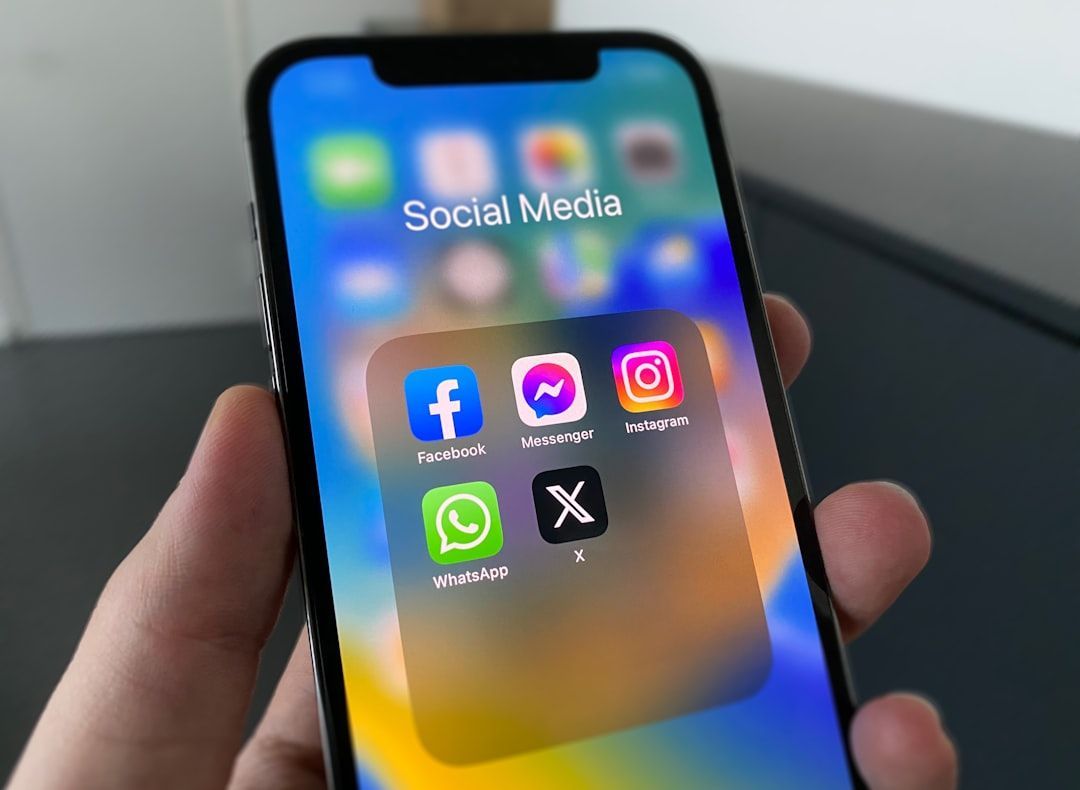
Having a strong social media presence is pretty much a must for businesses looking to compete in the digital age. That means having profiles on multiple platforms that produce fresh and relevant content for your audience across multiple channels to reach as many viewers as possible.
Meta users have the option to link their Facebook and Instagram social accounts to make cross-posting and customization options easier. When you post content to one account, the same content will automatically be shared on the other platform. For many, this is a nice benefit since you don’t have to remember to schedule or manually upload the same things twice. However, there might come a time when you want to separate these accounts. If so, here’s how to unlink Facebook and Instagram, step by step, on both mobile and desktop.
Understanding the Effects of Unlinking
Social media platforms make it quick and easy to reach a large portion of your customer base with just a few clicks. Linking your profiles gives you a variety of automatic sharing options that can make social media management easier if you’re doing it solo. You’ll have a variety of cross-platform sharing options right at your fingertips that are quick and easy to use.
However, you may notice that one platform has more of a following than another, so there might not be as much need to cross-post there. This is just one example of why you might want to unlink your profiles.
What Happens When You Unlink Facebook and Instagram?
Engagement and reach are two examples of how social media helps businesses. A strong social media presence gives you the power to not only engage current customers but also reach and acquire new ones in ways that other kinds of advertising might not. You need to know who your target audience is and just how to connect to them.
Take a look at your followers and audience. If you notice that you have more engagement on Instagram but not as much on Facebook, you might need to switch up your strategy. Unlinking your accounts can give you more power to control exactly what content is shared and when. You won’t lose your accounts or the login information, but you may lose connected information, like insights or private messages, along with the ability to cross-post.
Step-by-Step: Unlinking via Facebook (Mobile & Desktop)
If you don’t know how to unlink Facebook and Instagram accounts, start here. Following these steps, you can unlink these two social networks through Facebook.
On the Facebook Mobile App
- Open the Facebook app on your phone and tap the icon that looks like three horizontal bars on the top left of the screen. You will see a drop-down menu with the app’s settings.
- Scroll down to Settings & Privacy and then tap on Settings.
- Tap on the first item on the next menu, Accounts Center, where all of your connected accounts are managed. You will see both your Instagram and Facebook profiles.
- Select your Instagram profile and then Remove from Accounts Center. You should then tap Confirm when prompted.
On the Facebook Desktop Website
- Log into Facebook.com on your desktop and click on your profile picture in the top right corner.
- Click on Settings & Privacy and then Settings.
- Click on Permissions, then Linked Accounts. When you see Instagram, click View.
- Choose Disconnect Account and then Yes, Disconnect to confirm your choice.
Step-by-Step: Unlinking via Instagram (Mobile & Desktop)
You can also disconnect your profiles from the Instagram Accounts Center. Here’s how to unlink Instagram and Facebook from either the mobile app or your desktop computer.
On the Instagram Mobile App
- Open the Instagram app on your phone and tap on your profile picture in the bottom right corner. This will take you to your profile.
- Click on the three horizontal bars in the top right corner and then tap on the first item, Accounts Center.
- Scroll down to the bottom and tap Accounts. You will see all of your linked Instagram and Facebook accounts. Tap on the Facebook account and then Remove.
- Tap on Yes when prompted to confirm your choice.
On the Instagram Desktop Website
- Log into Instagram.com on your computer and click on More on the left panel. Then choose Settings.
- Click on Accounts Center at the top of the menu and then Accounts. You will see all your connected Instagram and Facebook profiles.
- Click on your Facebook profile, then Remove, then Yes to confirm your choice.
Troubleshooting Common Issues
- Unable to find linked accounts: You should be able to find all your accounts in Accounts Center. You can also find them on both Instagram and Facebook by clicking and holding down your profile picture in the bottom right corner.
- Unlinking option missing or not working: If this option is missing, it’s typically because the Instagram and Facebook accounts aren’t actually linked. Check your settings.
- Issues with logging in after unlinking: Again, check your settings. There might have been an issue during the unlinking process, so either in Facebook or Instagram, you can check the Accounts Center to make sure that the accounts have been properly unlinked.
Managing Accounts Separately After Unlinking
- Adjusting privacy settings on both platforms: After unlinking, go back and review your privacy settings on both platforms. This will make sure you are only sharing content when and to whom you want to.
- Posting separately without cross-sharing: Once your accounts are unlinked, they will not automatically share content on both platforms. Simply open the app that you want to share on and upload your content. It will only be shared on that platform.
- Managing business and personal accounts independently: Your business and personal accounts should be kept separate. To avoid confusion, use different emails and passwords and always make sure that you’re logged into the right account before you schedule any content for upload.
- How do I limit interaction without unlinking? If you don’t want to unlink your accounts, you can limit your interaction instead. In both Instagram and Facebook, go to Settings and open Sharing. You can select or deselect to automatically share content on both platforms. This will stop content from uploading automatically.
Manage Your Social Media Accounts With Optimize
Running a business means you have a million things to do and think about each day. Take one thing off your plate and turn to
Optimize Digital Marketing for fresh ideas and concepts when it comes to running your social media and digital marketing campaigns.
Our social media management services streamline your strategy and focus on driving more traffic to your business and increasing both SEO and visibility. We are an industry leader in digital advertising across various social media platforms. We creatively and effectively implement and optimize ad placements to get you the return and visibility you’re looking for.
Reach out to us today to learn what Optimize can do for you and how to get started!